Pinterest Downloader for iPhone
Save any Pinterest image or video to your iPhone straight from Safari. No app to install, no login, no watermark.
Supports: pinterest.com/pin/ · pin.it short links · All country domains
- SSL Secured
- No Login Required
- No Watermark
- 100% Free


How to Download Pinterest Images on iPhone — 3 Steps
- Step 1
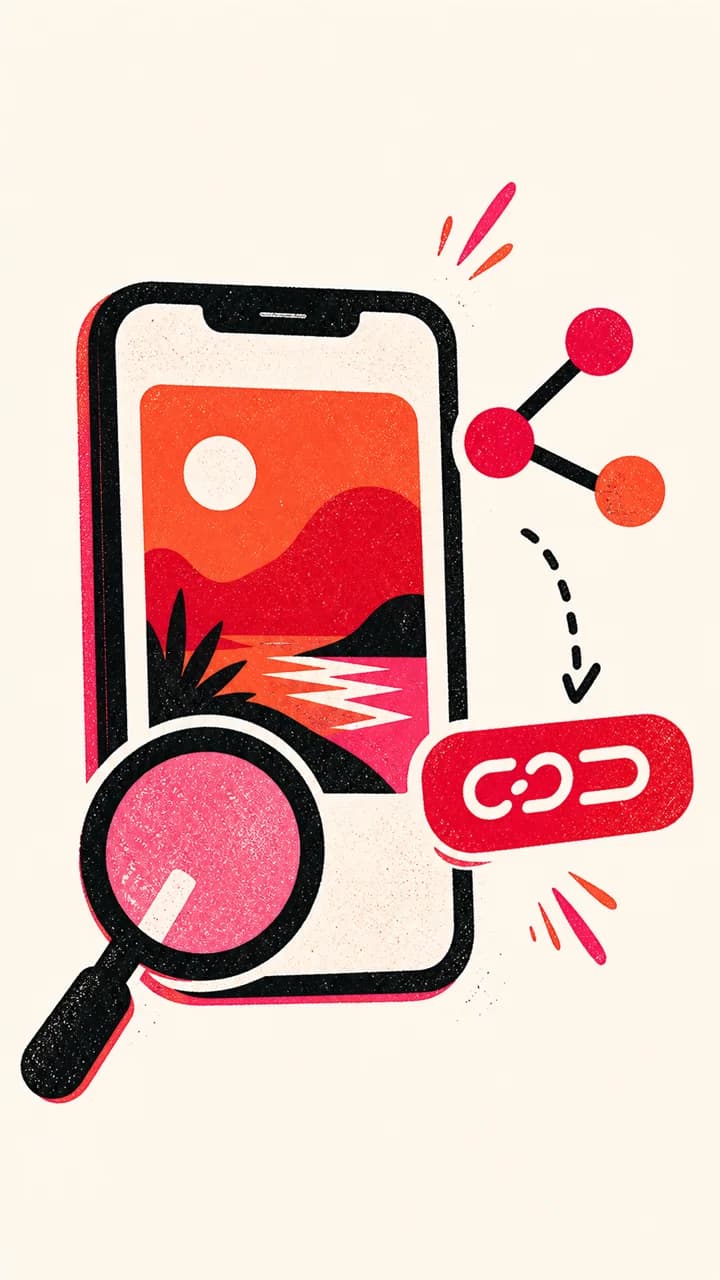
Copy the Pin link in the Pinterest app
Open the Pin, tap the share arrow, then tap Copy Link. Pinterest puts a pin.it short link on your clipboard, which works here as-is.
- Step 2
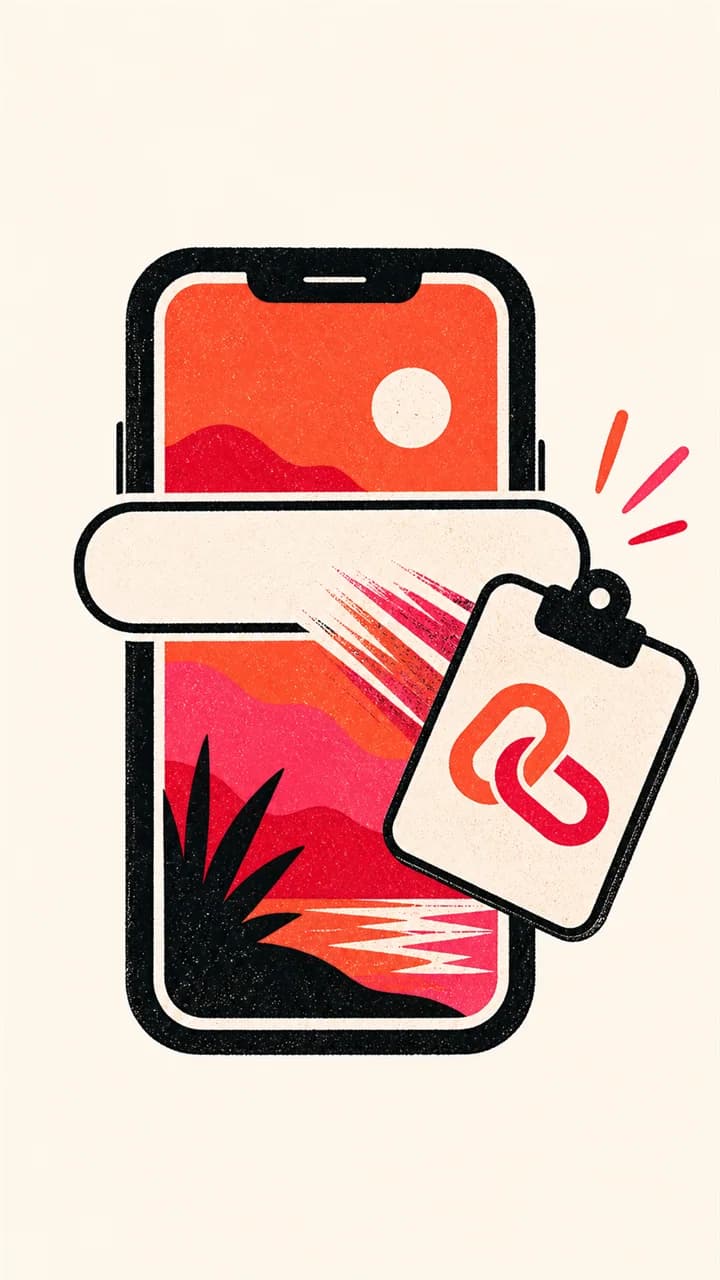
Paste it into Safari
Come back to this page in Safari and tap Paste, or long-press the box and choose Paste. iOS may ask permission to read the clipboard the first time.
- Step 3
Save it to Photos
Long-press the result image and choose Add to Photos to put it straight in your Camera Roll, or tap Download to send it to the Files app.



Guide
Where iPhone downloads actually go
This is the step that catches most people out. When you tap a download button in Safari, iOS does not put the file in Photos — it hands it to the Safari download manager, which saves it into the Downloads folder of the Files app. Your Camera Roll looks unchanged, and it is easy to conclude the download failed when it did not.
To move a file from Files into Photos, open the Files app, tap Downloads, tap the file, then tap the share icon and choose Save Image or Save Video. From that point it behaves like any other photo — it syncs to iCloud, appears in Recents, and can be edited.
- Files app → Browse → On My iPhone → Downloads is the default location.
- You can change it in Settings → Safari → Downloads if you would rather use iCloud Drive.
- Images saved with Add to Photos skip Files entirely and land in the Camera Roll directly.
Saving straight to your Camera Roll
For images there is a shortcut worth knowing: once the result appears above, press and hold it. Safari shows a menu with Add to Photos, which writes the full-resolution file into your Camera Roll in one step, no Files detour.
Videos do not offer Add to Photos from a long-press. Use the Download button, then move the MP4 across from Files as described above. It is one extra tap, and it is the only reliable route on iOS.
Which iPhone browsers this works in
Safari, Chrome, Firefox and Edge on iPhone all handle these downloads the same way, because downloading and long-press saving are provided by iOS rather than by the browser. If a download behaves oddly in one of them, switching to Safari is the quickest thing to try.
Private Browsing works too. Nothing here depends on being signed in to Pinterest, so a private tab downloads exactly the same file.
You do not need an app for this
Searches for a Pinterest downloader on iPhone often lead to app listings or configuration profiles, but neither is required for this workflow. The browser can resolve a public Pin link and hand the selected file to iOS without an extra account or a permanently installed downloader.
You stay in control of the browser permissions you approve and of the individual file you save. There is no profile to install and no background service to leave running. For an occasional download, keeping the task in a browser tab is the simpler option.
What you can and cannot save
Anything on a public Pin works: images, videos, GIFs and the individual pages of a slideshow Idea Pin. If you can open the Pin in a browser without signing in, it can be saved here.
Some Pins cannot be reached, and it is worth knowing which before you assume something is broken. Pins on secret boards, Pins from accounts set to private, and Pins that Pinterest has taken down are all invisible to anything that is not signed in as you — including this page. Pinterest also puts a sign-in wall in front of some Pins depending on region and traffic, and those return an error rather than a file.
Saving a Pin does not change who owns it. Downloading someone's photograph for a private moodboard is a very different thing from republishing it, and the second one is the creator's decision to make, not yours.
- Public Pin, public board — works.
- Secret board or private account — not reachable without your login.
- Deleted Pin — gone; the link will error rather than return an old copy.
Frequently Asked Questions
Why can't I find my Pinterest download on my iPhone?

It is almost certainly in the Files app rather than Photos. Open Files, tap Downloads, and it will be there. Tap it, then use the share icon and Save Image or Save Video to move it into your Camera Roll.
How do I save a Pinterest image straight to my Camera Roll?
Press and hold the result image and choose Add to Photos. That writes the full-resolution file into your Camera Roll in one step, without going through the Files app.
Can I download Pinterest videos on iPhone?
Yes. Paste the video Pin link, pick a quality, and tap Download. The MP4 goes to the Files app; open it there and choose Save Video to move it into Photos.
Do I need to install an app?
No. This runs entirely in Safari or any other iPhone browser. There is nothing to install and no configuration profile to trust.
Does this work on iPad too?
Yes. iPadOS uses the same download manager and the same long-press menu, so every step on this page applies unchanged.
Why won't the Paste button work?
iOS asks permission before a website may read your clipboard. If you dismissed that prompt, long-press the input box and choose Paste instead — that always works.
Will the image lose quality on iPhone?
No. The file is fetched from Pinterest's own CDN at its original resolution, and neither Safari nor Photos re-compresses it on the way in.